
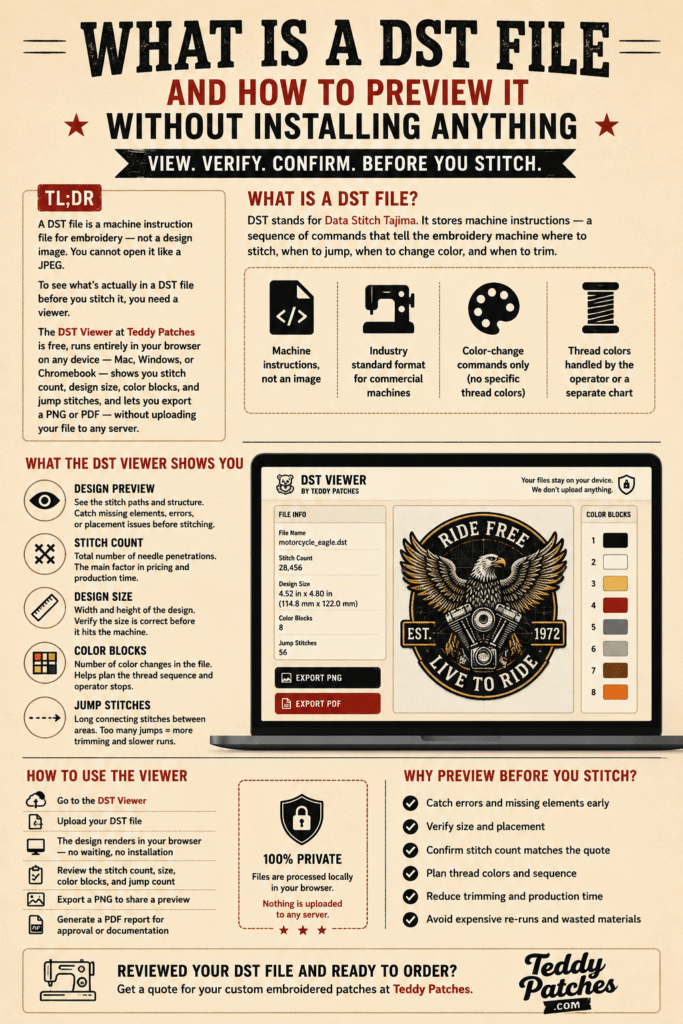
TL;DR: A DST file is a machine instruction file for embroidery — not a design image. You cannot open it like a JPEG. To see what is actually in a DST file before you stitch it, you need a viewer. The DST Viewer at Teddy Patches is free, runs entirely in your browser on any device — Mac, Windows, or Chromebook — shows you stitch count, design size, color blocks, and jump stitches, and lets you export a PNG or PDF — without uploading your file to any server.
At Teddy Patches, DST files come through our production workflow constantly. Customers send them for custom orders. Digitizers export them from their software. Machine operators load them before stitching. And in almost every case, someone along the way needs to answer a basic question before anything gets sewn: does this file look right?
That question used to mean opening heavy embroidery software, waiting for it to load, and navigating menus most people only use once a week. The DST Viewer exists to skip all of that. Upload the file, see the design, check the numbers, move on.
This guide explains what DST files actually are, what the viewer shows you, how to read what you are looking at, and where things can go wrong if you skip the preview step.
What Is a DST File
DST stands for Data Stitch Tajima. It is a stitch-based embroidery format originally created by Tajima, one of the major manufacturers of commercial embroidery machines. The format stores machine instructions — not an image of your design, but a sequence of commands that tell the needle where to move, when to stitch, when to jump, when to trim, and when to stop for a color change.
Because DST is one of the oldest embroidery formats and is compatible with most commercial machines, it became an industry standard. If you are ordering embroidery from a professional shop, requesting a file from a digitizer, or preparing a design for a commercial run, DST is almost certainly the format involved.
The format has one significant limitation: there is no standardized way to store thread color information. DST files record color-change commands — they tell the machine “stop here and change thread” — but they do not specify what color comes next. That is handled separately, either by the operator at the machine or by a color sequence document that travels alongside the file.
This matters when you are previewing a DST file. What you see in the viewer may not match the final thread colors used in production. The colors shown in the preview are placeholders — they represent color blocks, not specific thread brands or shades.
What the DST Viewer Shows You
The DST Viewer at Teddy Patches reads the stitch data in your file and renders it visually in the browser. Here is what each metric means and why it matters.
Design Preview
The preview renders the stitch paths from the file. You can see how the design is structured — the stitching order, the outlines, the fill areas. This is the fastest way to catch obvious problems: a missing section, an element placed incorrectly, or a design that came through corrupted.
Stitch Count
Stitch count is the total number of individual needle penetrations in the file. For embroidery pricing, stitch count is the primary cost variable — more stitches means longer run time and more thread consumption. Use this number to verify that the count matches what your digitizer quoted, or to estimate production time before a run.
One note: stitch count varies by software. Different programs count stitches differently, especially around jump stitches, trim commands, and color-change stops. The count shown in the viewer is an accurate read of what is in the file — but it may differ slightly from what your digitizing software shows, and that is normal.
Design Size
The viewer shows you the dimensions of the design in the file. This is critical to check before production. A design that was digitized at the wrong size, or that got resized incorrectly during file transfer, will stitch out wrong. Checking the dimensions before the machine runs saves material, thread, and time.
Color Blocks
Color blocks represent how many times the file issues a color-change command. Each block is a section of stitching that runs until the machine stops for the next color. This tells you how many thread changes an operator will need to make during the run, and helps you plan the color sequence before production starts.
Because DST does not embed actual thread colors, the viewer assigns placeholder colors to each block. Use these to understand the structure of the design — which elements are in which color group — not to pick thread shades.
Jump Stitches
Jump stitches are the long connecting stitches the machine makes when moving from one area of the design to another without stitching. A high number of jumps can indicate a design that was digitized inefficiently, or one that will require a lot of trimming after stitching. In commercial production, excessive jumps slow down the run and create more post-production cleanup work.
How to Use the Viewer
The process is straightforward, and works the same on Mac, Windows, Linux, or any device with a browser:
- Go to the DST Viewer
- Upload your DST file using the file selector
- The design renders in the browser — no waiting, no installation
- Review the stitch count, size, color blocks, and jump count
- Export a PNG if you need a clean preview image to share
- Generate a PDF report if you need the metrics alongside the preview for documentation or approval
Files are processed locally in your browser. Nothing is uploaded to a server. This matters if you are working with proprietary client files or designs that have not been released publicly — your files do not leave your device.
If you have reviewed your DST file and are ready to place a custom patch order, you can get a quote at Teddy Patches — include the DST file and we handle the rest.
Common Situations Where the Viewer Saves a Problem
Confirming a file from a digitizer before paying for a run
You received a DST file, you want to confirm it matches what you asked for before sending it to the machine. The preview takes seconds. Catching a problem here costs nothing. Catching it after 500 pieces are stitched is a different situation. We have seen designs come through quoted at 18,000 stitches that the viewer read at over 40,000 — a difference that changes both the production cost and the run time significantly. That kind of discrepancy is invisible until you actually open the file.
Checking a design that looks right in digitizing software but wrong on the machine
Sometimes a file previews differently across tools. The viewer gives you a neutral read of what is actually in the file — not what your software interprets or renders.
Sending a preview to a customer for approval
Customers often cannot open DST files. Export a PNG from the viewer, send it as a preview image, and get sign-off before production. Clean, simple, no confusion about what the final design looks like.
Verifying dimensions before stitching on a hat versus a jacket
A design that fits a jacket panel does not automatically fit a hat front. Checking the size in the viewer before you load the file saves a misaligned stitch-out.
Estimating production time before scheduling a run
Stitch count translates directly to machine run time. If you are scheduling a large order, knowing the count per piece helps you estimate total machine hours before committing to a delivery date.
What the Viewer Does Not Do
The DST Viewer is a read-only tool. It shows you what is in the file — it does not edit the design, change stitch paths, resize the file, or convert it to another format. If you need to make changes after reviewing the preview, those need to be made in your digitizing software and the file exported again.
The viewer also does not correct for thread color. What you see in the color blocks is structural — use it to understand how many colors are in the design and in what order they stitch, not as a thread-matching reference.
If you work with PES files instead of DST, Teddy Patches has a separate PES Viewer built the same way — browser-based, no upload required, same export options.
Why DST Files Can Look Different Across Software
This is one of the more common points of confusion when working with embroidery files. You open a DST file in one program and it looks fine. You open the same file in another program or viewer and it looks rotated, mirrored, or different in color.
A few reasons this happens:
Orientation: The DST format does not store a fixed orientation reference. Different software interprets the starting point and direction differently. A design that appears right-side-up in one viewer may appear rotated 90 degrees in another. This is a display issue, not a file problem — the stitch data is the same either way.
Color assignment: Because DST does not embed color data, every viewer assigns its own placeholder colors to the color blocks. The sequence will match — block 1 is always block 1 — but the colors shown will differ.
Stitch count interpretation: Some software counts every command in the file, including jumps and trims. Others count only actual needle-down stitches. The result is a number that looks different depending on which tool you use, even though the underlying file is identical.
None of these differences indicate a corrupted file. If the preview looks structurally correct — the design is there, the shapes are right, the color blocks match what you expected — the file is fine.
Frequently Asked Questions
What is a DST file used for? A DST file contains machine instructions for an embroidery machine. It tells the machine where to move the needle, when to stitch, when to jump between areas, when to trim the thread, and when to stop for a color change. It is one of the most common commercial embroidery formats and is compatible with most professional embroidery machines.
Can I open a DST file without embroidery software? Yes. The DST Viewer at Teddy Patches runs in your browser and does not require any software installation. Upload the file, and the viewer renders the design and displays the key metrics directly in the browser.
Why does my stitch count look different in different programs? Different software interprets jump stitches, trim commands, and color-change stops differently when calculating stitch count. The viewer gives you an accurate read of the file — minor differences between tools are normal and do not indicate a problem with the file.
Does the DST Viewer upload my files to a server? No. Files are processed entirely in your browser using local computation. Nothing is sent to or stored on a server. This applies to every file you load into the viewer.
Can I use the DST Viewer to edit my design? No. The viewer is a read-only tool for previewing and checking files. To make changes to the design, you need to return to your digitizing software, make the edits there, and export a new DST file.
Why does my design look rotated or mirrored in the viewer? The DST format does not include a fixed orientation reference. Different tools interpret the starting orientation differently. If the design shapes and stitch structure look correct, the file is fine — the rotation is a display difference between tools, not a file error.
Can I export the preview to share with a customer? Yes. The viewer lets you export a PNG preview image and generate a PDF report that includes the preview alongside the key metrics. Both are useful for customer approvals and internal documentation.
What is the difference between DST and PES files? DST is a Tajima-originated format widely used in commercial production. PES is a Brother format common in home and semi-professional machines. Both store stitch instructions, but they are structured differently and are not interchangeable without conversion. Teddy Patches has a separate viewer for PES files.
Also From Teddy Patches: PES Viewer, Web App & Android App
If you work with Brother embroidery machines or receive files in PES format, the PES Viewer works exactly the same way — browser-based, no upload to a server, with PNG export and the same stitch metrics. It is built for the same workflow, just for a different file format.
If you prefer working from your phone or tablet on the production floor, Teddy Patches also has an Android app that brings the same viewer experience to your device. Download it from the Google Play Store and preview embroidery files without needing to be at a desktop.
All tools — DST Viewer, PES Viewer, and the Android app — are free to use with no account required.
Final Thoughts
The DST Viewer is a single-purpose tool. It does one thing: lets you see what is inside a DST file without opening heavy software. For anyone working in embroidery production — whether you are a digitizer reviewing your own output, a shop owner checking a client file, or a machine operator confirming dimensions before a run — that one thing saves time and catches problems before they cost money.
Use it before you stitch. Export the preview when you need sign-off. Check the dimensions every time.
The DST Viewer, PES Viewer, and Android app are all free and available at Teddy Patches Tools.